Add HexaHQ to Claude Team or Enterprise.
On a team plan this is two jobs rather than one. An Owner adds the HexaHQ connector once for the whole workspace, and then each person connects their own account. Both halves are on this page. If you are on a Pro or Max plan instead, you add it yourself and the screens are different: those steps are here.
Only an Owner can add a custom connector. That is Claude's rule, not HexaHQ's, so if you are a member the steps in the next section will not be available to you. Skip to what everyone else does, and ask whoever administers your Claude workspace to do the Owner half.
Before you startWhat Claude needs.
The address is https://mcp.hexahq.ai/mcp, and connecting uses OAuth, so each person approves
access in the browser rather than pasting any secret into Claude. Adding the connector signs nobody in to
anything: it makes HexaHQ available to the workspace, and that is all.
Adding it once, for the workspace.
-
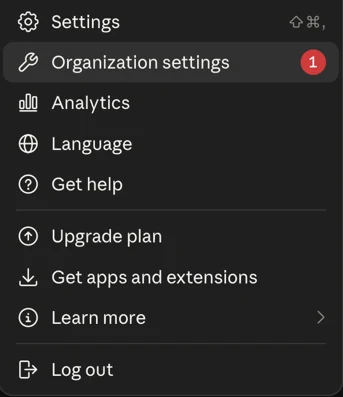
Open your account menu, then Organization settings. This is a different entry from
Settings, and it is the one that administers the workspace rather than your own account.
-
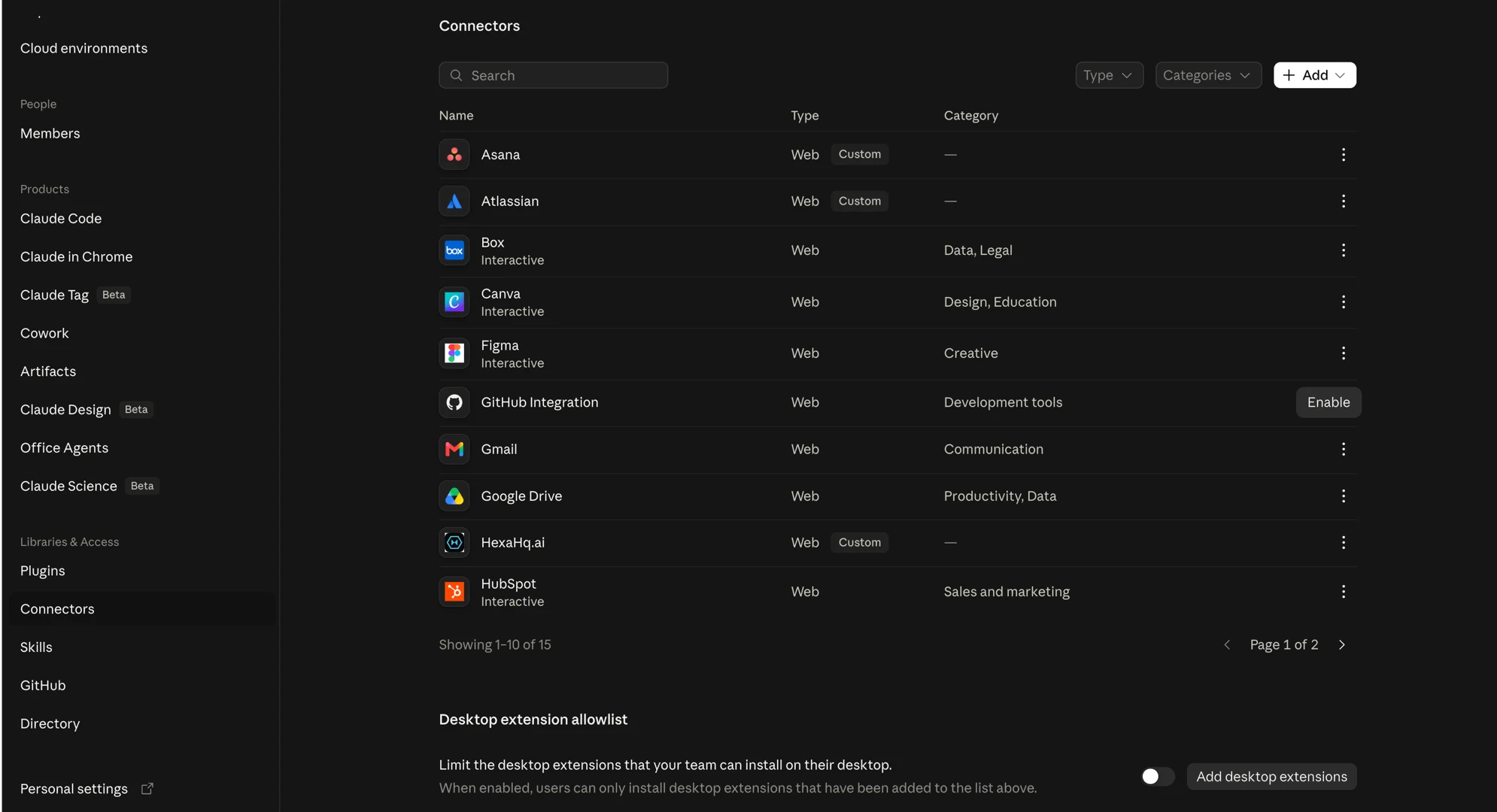
Under Libraries & Access, choose Connectors.
-
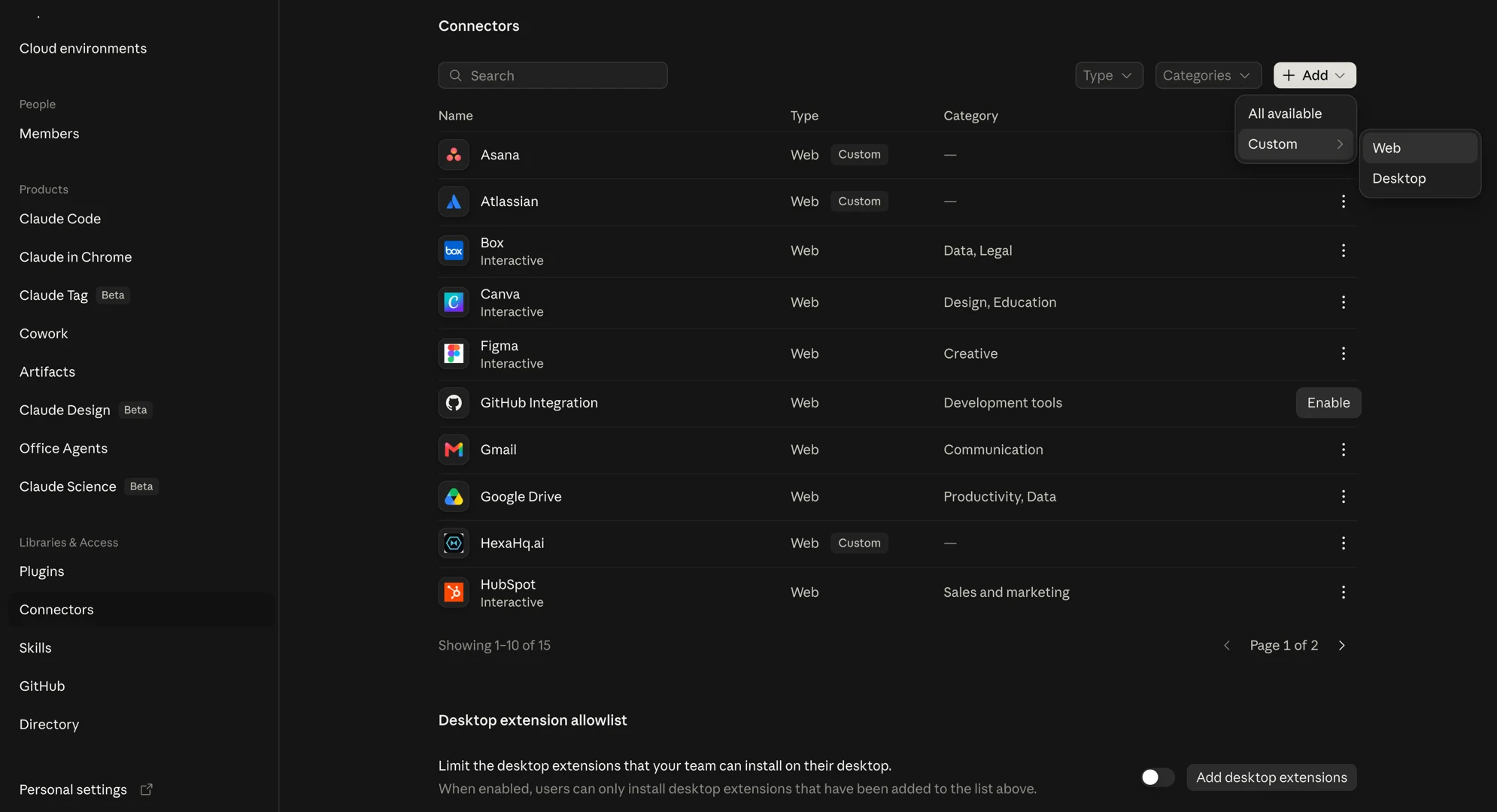
Click Add, hover Custom, and choose Web.
-
Name it, paste
https://mcp.hexahq.ai/mcp, and leave Individual sign-in on. That setting is the one that matches how HexaHQ works: each person connects as themselves, so HexaHQ acts with their own access rather than a shared account, and the run history says who did what. Then click Add.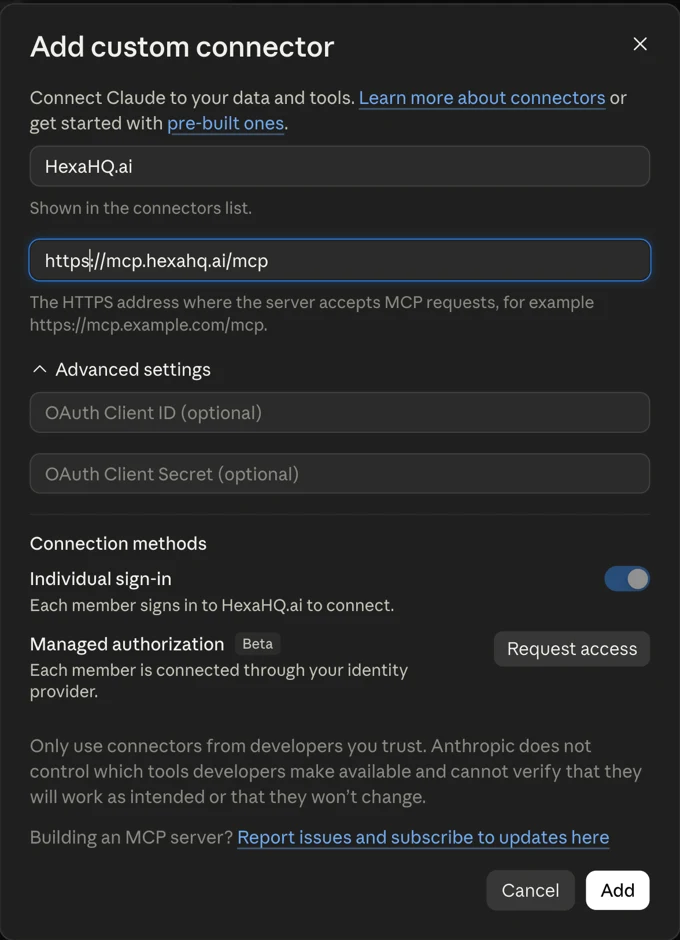
Claude will warn you that it cannot vouch for a custom connector. The dialog says to only use connectors from developers you trust, because Anthropic does not review what a custom connector does. That notice appears for every custom connector, not for HexaHQ in particular, and it is there until HexaHQ is listed in Claude's own directory. What HexaHQ does with the access is on the security page, the governance controls a workspace gets are on the teams page, and every action HexaHQ takes is recorded in the run history for you to inspect.
Steps for everyone elseConnecting your own account.
Once the Owner has added it, HexaHQ shows up in your own settings and you connect it there. This is the half people miss: the connector existing in the workspace does not mean you are connected to it yet, and a member who stops at "it is in the list" will find that HexaHQ does nothing.
-
Open Settings, then Connectors, and click Connect beside HexaHQ. You approve access in
the browser, and from then on HexaHQ acts as you.
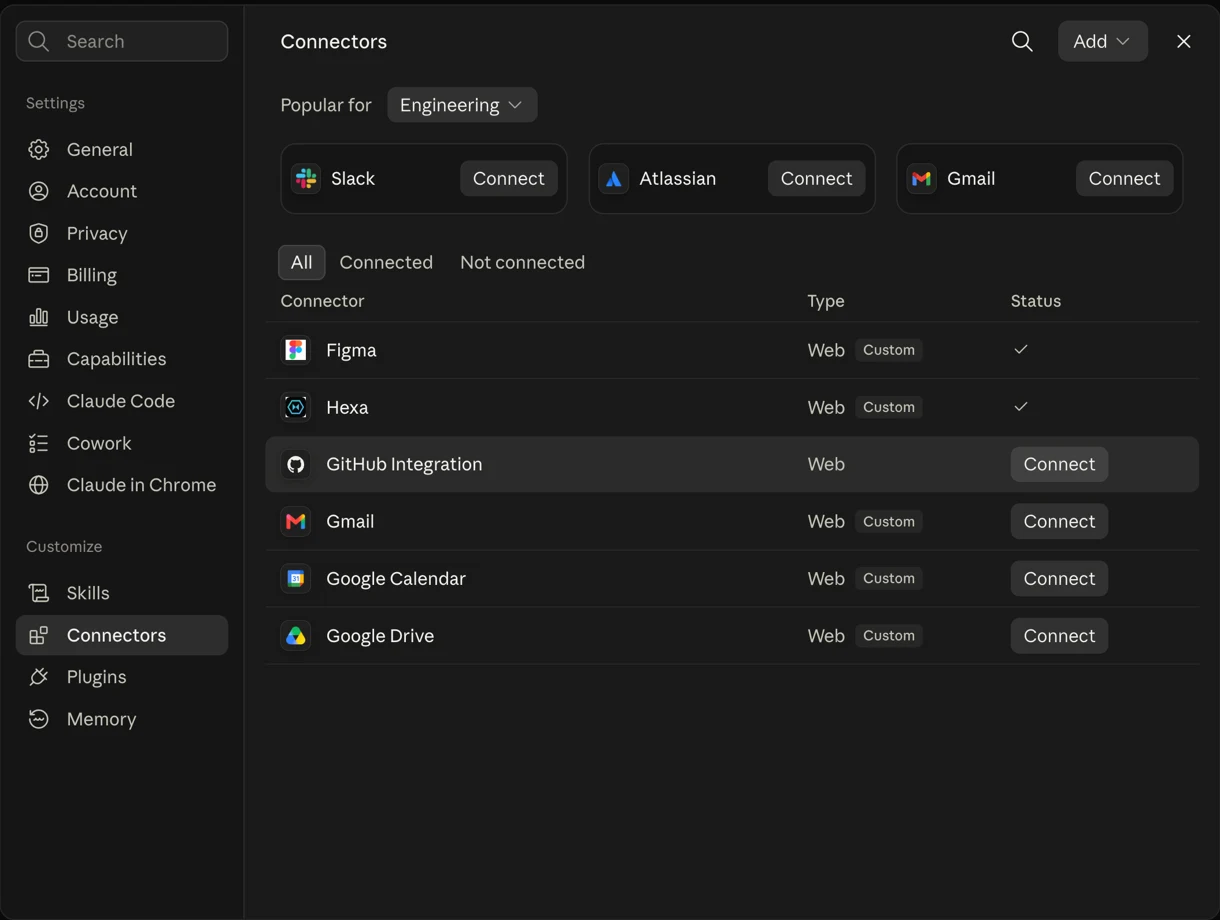
If HexaHQ is not in your list, do not try to add it yourself. On a Team or Enterprise plan the option to add a custom connector belongs to Owners, so adding it is not something you can do from your own settings. Ask whoever administers your Claude workspace to follow the Owner steps above.
NextOnce it is connected.
Ask Claude for something that touches your tools and it will reach for HexaHQ. If your AI later tells you that HexaHQ's tools are out of date, that is a different and much shorter fix: refreshing the connector in Claude. Each person refreshes their own; it is not something the Owner does for the workspace. For people on your team who use ChatGPT, adding HexaHQ there is a per-person setup with no admin step.
For a first thing to try, using Claude with your WordPress site goes from connecting the site to a draft post, and shows the approval Claude asks for before it publishes.