Refresh the HexaHQ connector in Claude.
Usually you are here because your AI just told you to be: HexaHQ noticed that Claude is working from an old copy of what HexaHQ can do, and said so. In Claude the control is named exactly what it does, and it is in the connector's own settings.
Claude re-reads HexaHQ's tools every time it connects. A new chat is a new connection, so a change on HexaHQ's side is normally picked up on its own, with nothing to click. The steps below are for when that has not happened, and the refresh they end with applies to the conversation you are already in. In ChatGPT the same fix also needs a new chat before it takes effect: refresh the connector in ChatGPT.
FirstWhy you would refresh.
Most HexaHQ changes are additive, which means an older copy of the tool list keeps working. At worst it is missing something new. So the signal to act is not "HexaHQ changed", it is one of these:
- HexaHQ answers a request by telling you, in plain language, that your HexaHQ tools are out of date and to refresh the connector. HexaHQ says this when your AI reaches for something that no longer exists, so it is the most reliable signal there is.
- Claude tells you it cannot find a HexaHQ tool that the help center or a teammate says exists.
- A step that used to work now fails every time, in a new chat, with the same error.
If none of those is happening, there is nothing to fix. A quiet connector that does the work is a current connector.
Claude Chat and Claude CoworkSteps.
Cowork is a mode inside the same app rather than a separate one, so these steps serve both: the toggle sits in the message box and the connector settings are shared.
-
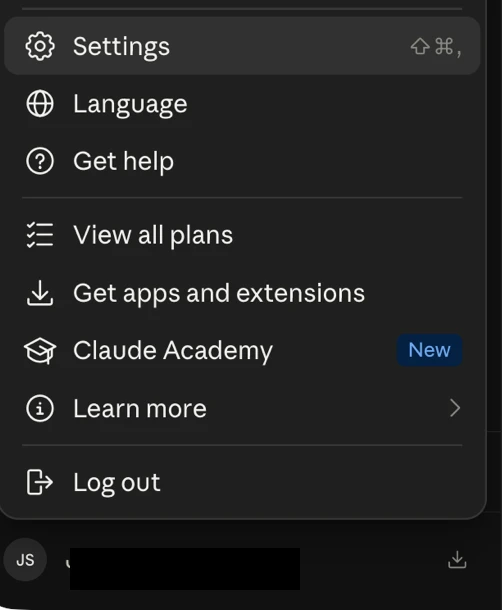
Open your account menu at the bottom of the sidebar, then Settings.
-
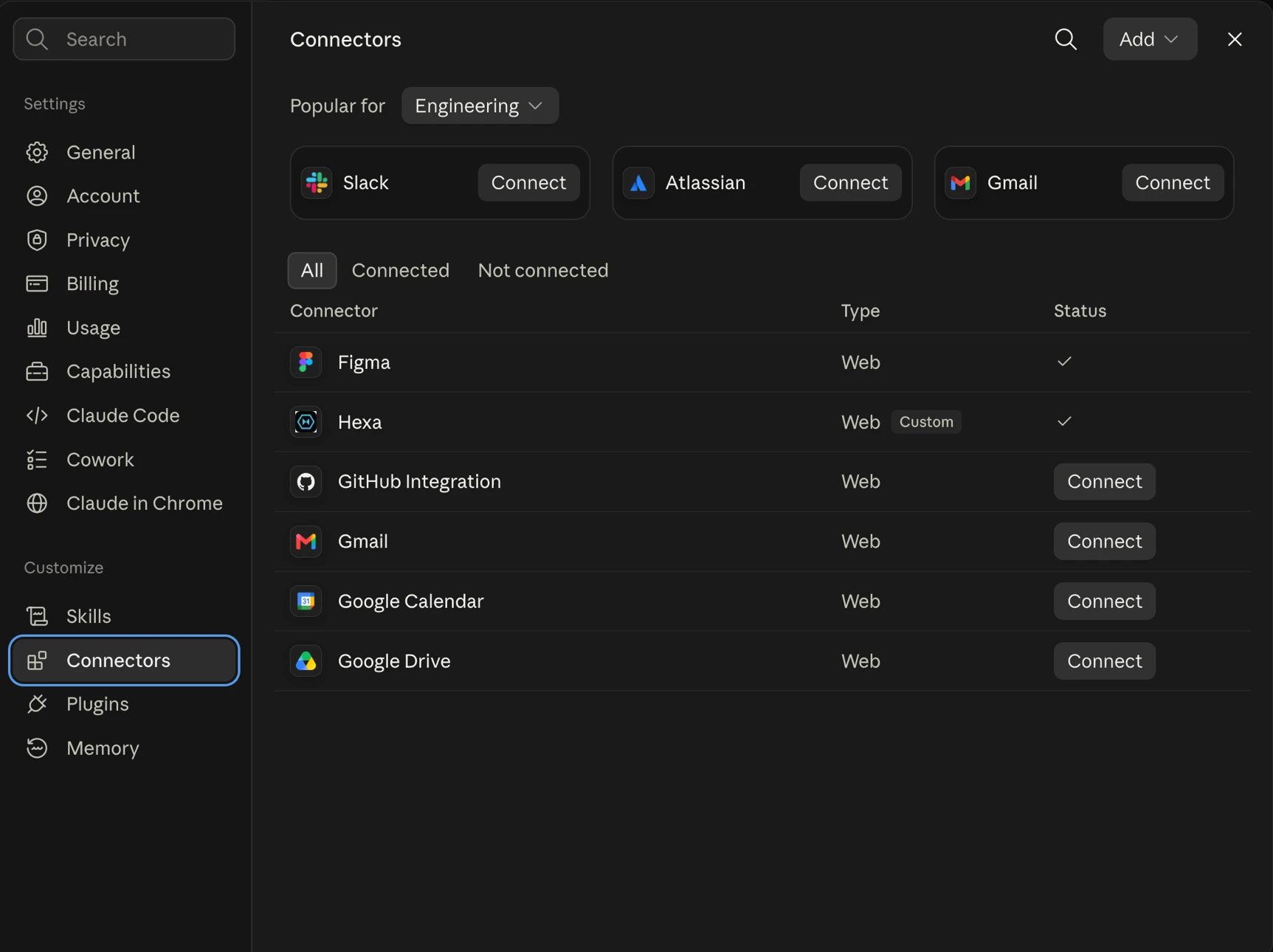
Under Customize, choose Connectors.
-
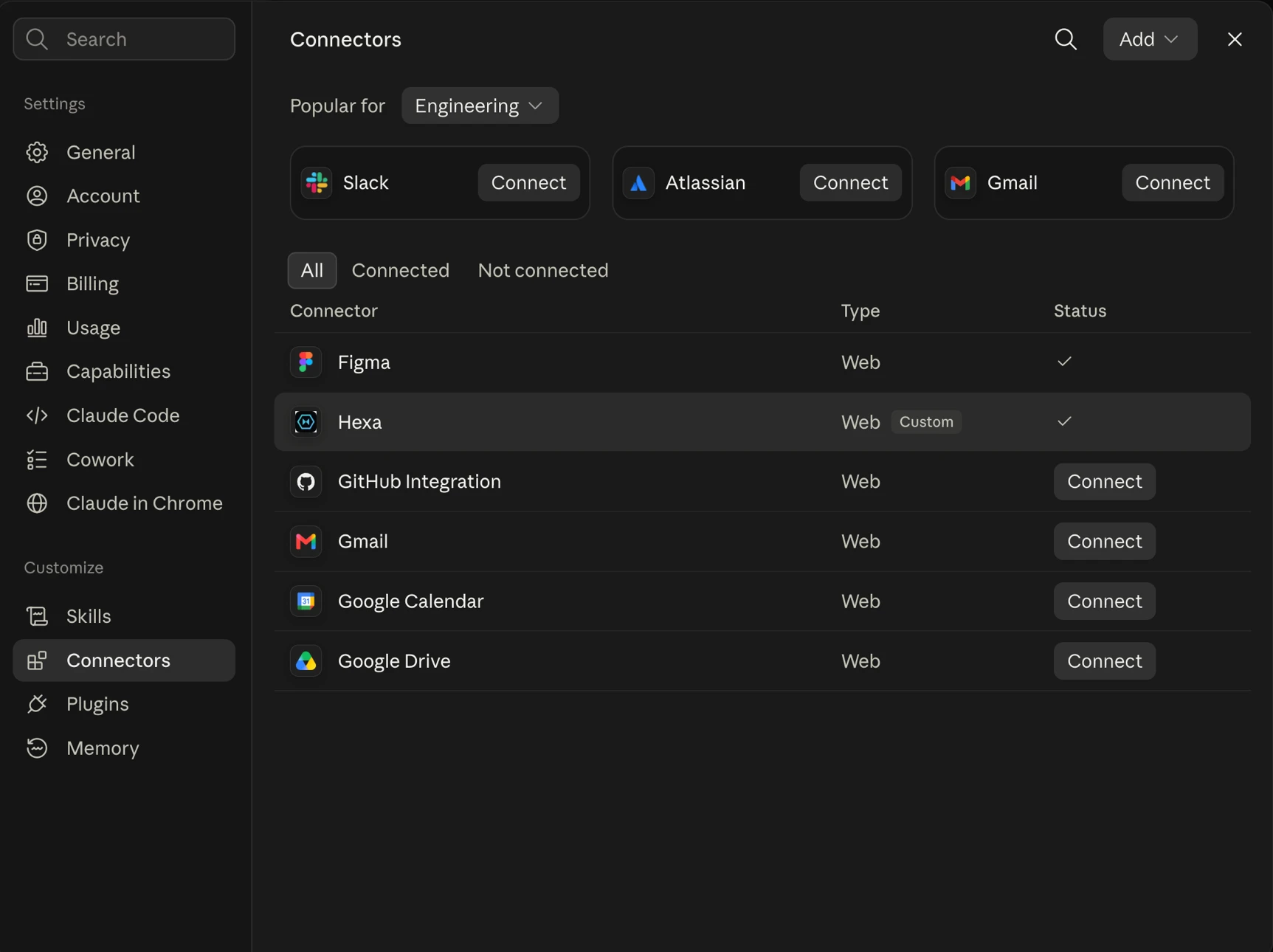
Select HexaHQ in the list. It is the row marked Custom, and it carries
whatever name you gave it when you added it. If it is not there at all, nothing on this page will help:
start from setting HexaHQ up with your AI instead.
-
Open the menu beside Disconnect and choose Refresh tools list. While you are there, the
address under the name should read
https://mcp.hexahq.ai/mcp.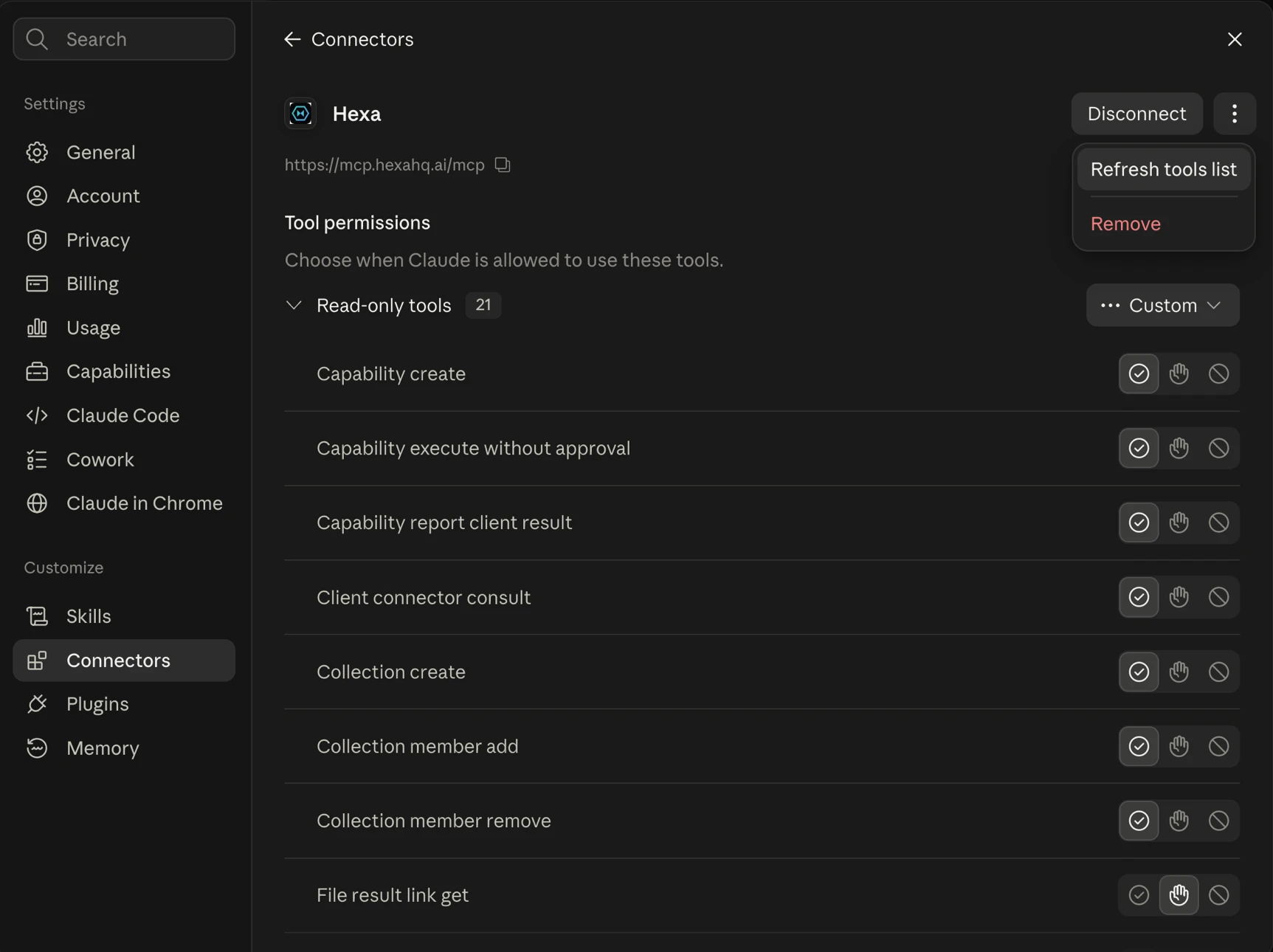
That is the whole thing, and you do not need to start a new chat. The refreshed list applies to the conversation you are already in. If you use ChatGPT as well, the procedure there is different and has a step more: refreshing the connector in ChatGPT.
If reconnecting does not take, remove the connector and add it again with the address
https://mcp.hexahq.ai/mcp/. Removing it does not touch anything in HexaHQ. Your knowledge,
workflows, connected tools, and history all stay where they are, because they live in your HexaHQ
organization rather than in the AI.
Ask Claude, rather than guessing.
HexaHQ's guide tool compares the tools Claude is holding against the ones HexaHQ is actually
serving, and reports whether they match. That is a straight answer, instead of inferring it from whether
your next request happens to work. Paste this:
Call HexaHQ's `guide` tool, passing the HexaHQ tools you currently have
loaded, and tell me whether your tool list is current or stale.
The same trick works if you would rather not hunt for the settings screen at all. Ask Claude to walk you through refreshing the HexaHQ connector for whichever Claude app you are in, and it will name the steps for that app.
Keep oneOne HexaHQ connector per app.
If a refresh leaves you with two HexaHQ connectors in the same app, remove the older one. Two connectors pointing at the same HexaHQ make it ambiguous which one your AI reaches for, and that reads as a flaky connection. See connectors for how connections work more generally.