Refresh the HexaHQ connector in ChatGPT.
Usually you are here because your AI just told you to be: HexaHQ noticed that ChatGPT is working from an old copy of what HexaHQ can do, and said so. The only awkward part of fixing it is that the button sits at the bottom of a long panel, and the control next to it that looks right is the wrong one.
Why you would refresh.
ChatGPT keeps its own cached copy of the list of things HexaHQ can do, tied to the version of the connector it saved when you added it. HexaHQ only ever adds to that list, so an old copy keeps working and at worst is missing something new. That is why there is nothing to do on a schedule, and no reason to refresh because time has passed.
There are three reasons to be on this page, and the first is the common one:
- Your AI told you to. When it reaches for something in HexaHQ that no longer exists, HexaHQ answers by telling it, in plain language, that the tools are out of date and the connector needs refreshing. That message is meant for you, and it is the most reliable signal there is.
- A request fails asking for something ChatGPT says it cannot see. That is the signature of a cached older copy: HexaHQ has added a detail since ChatGPT saved its snapshot, and it cannot send what is not in front of it.
- A step that used to work now fails the same way every time, including in a brand new chat.
If none of those is happening, there is nothing to fix here. And if the problem is that ChatGPT says it has no tool for something, read a missing tool is usually not a stale connector first, because refreshing will not change it.
The control that looks right is the wrong one. Inside the Manage panel there is a second triple-dot menu, and it offers Reconnect. That re-runs the authorization and leaves ChatGPT holding the same list of actions it already had. The control that actually re-pulls the list is a Refresh button at the very bottom of the panel, and what it fetches only reaches chats you start afterwards. Both of those are easy to miss. If you use a Claude app instead, none of this applies and the fix is shorter: refreshing the connector in Claude.
The stepsRefreshing it.
-
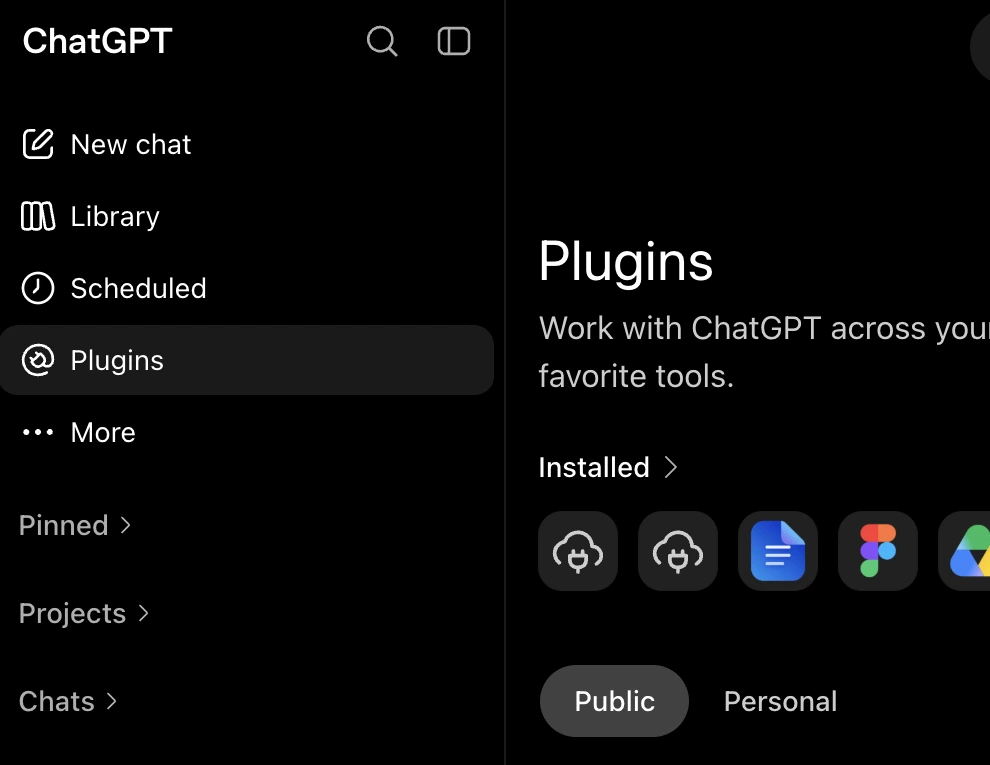
Click Plugins in the sidebar, or go straight to
chatgpt.com/plugins.
-
Select the
HexaHq.aiplugin. It is under Installed, and the icon is a small cloud with a plug in it. If it is not listed, nothing on this page will help: either it was never added to this account, or this account is not showing custom plugins yet. Start from setting HexaHQ up with your AI instead.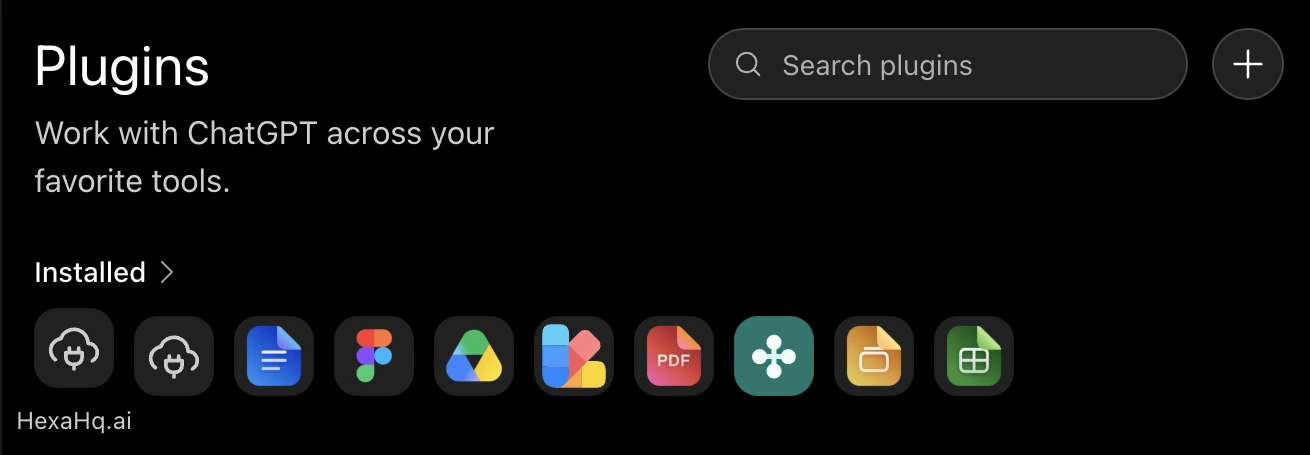
-
Click the triple dots, then Manage. That opens the panel holding the plugin's permissions
and its full list of actions.
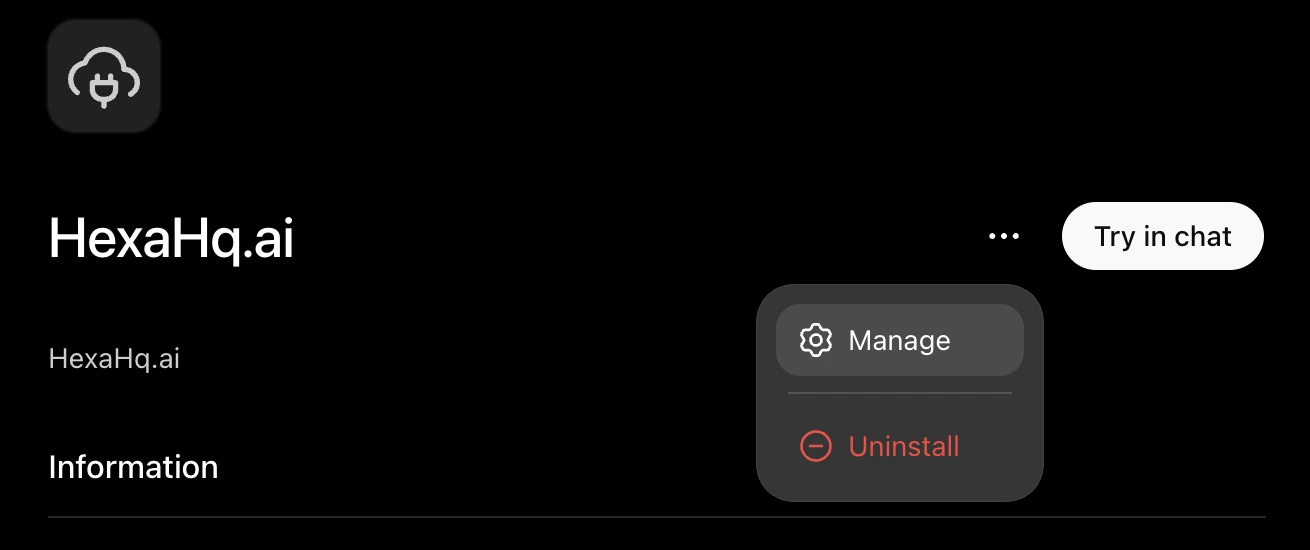
Then ignore the triple dots. The panel that opens has a second triple-dot menu of its own, at the top, and it offers Reconnect. That is not this. Reconnect sits alongside Disconnect and Delete because it belongs to the connection rather than to the tool list: it sends you back through authorization and returns you to the same actions you started with. If you have reconnected HexaHQ repeatedly and nothing changed, that is why. What you want is at the bottom of this panel, so scroll.
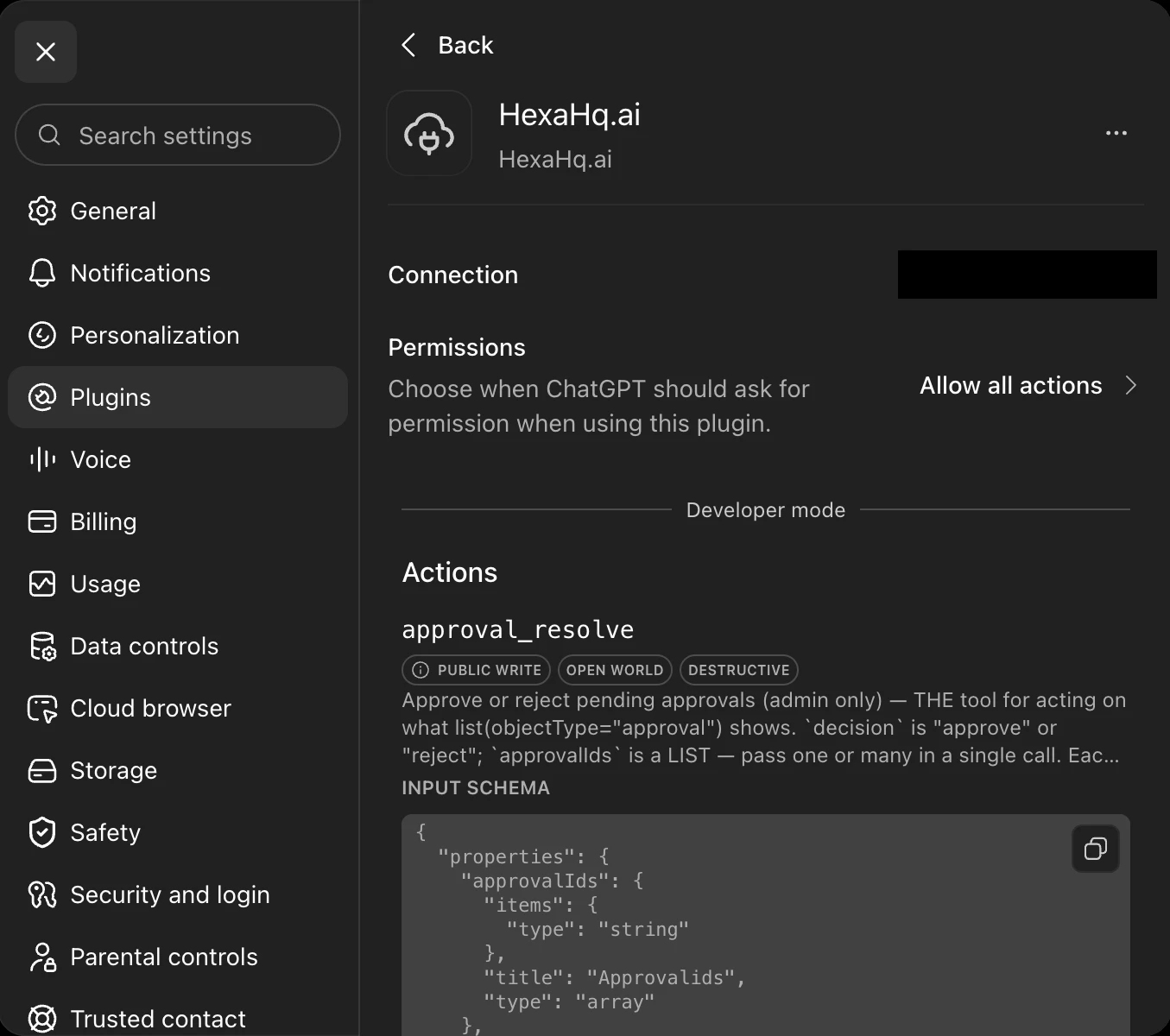
- Scroll down, to the bottom. Past all the actions and past the Metadata block, to the section headed Information. This is the part people never reach, because the actions list is long and looks like the end of the page.
-
Click Refresh, to the right of the Information heading. This re-pulls HexaHQ's current
actions. While you are there, the URL row should read
https://mcp.hexahq.ai/mcp.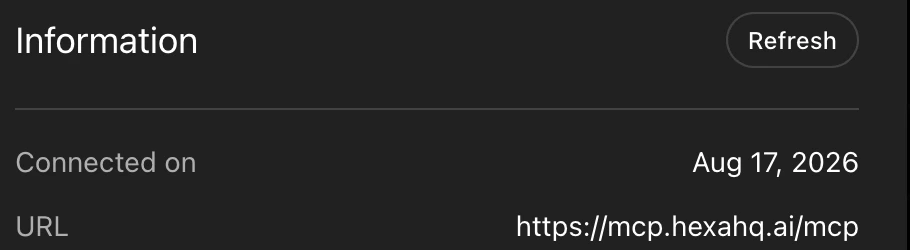
- Start a new chat. Not optional, and this is the step people skip. The chat you were already in keeps the copy it started with, so a refresh appears to have done nothing until you open a fresh one.
-
Confirm it took. Ask ChatGPT to call HexaHQ's
guidetool, passing the HexaHQ tools it currently has loaded. HexaHQ compares that against what it is actually serving and answers whether the list is current or stale, which beats inferring it from whether your next request happens to work.
If a refresh does not fix it, remove the HexaHQ connector and add it again, pointing at
https://mcp.hexahq.ai/mcp/. You will approve access in the browser, the same as the first time.
Removing a connector does not touch anything in HexaHQ: your knowledge, workflows, connected tools, and
history live in your HexaHQ organization, not in the AI.
A missing tool is usually not a stale connector.
ChatGPT loads MCP tools on demand rather than all at once, so at any moment it is holding a small slice of what HexaHQ offers. That means "I don't have a tool for that" is usually a tool it has not loaded yet, not a tool that is out of date, and refreshing the connector will not change it. The fix is to tell ChatGPT the tool exists and to load it:
HexaHQ has more tools than you currently have loaded. Load the full HexaHQ
tool set and decide from all of it, rather than concluding HexaHQ cannot
do something because the tool was not in front of you.
Refresh the connector when the signal points at staleness instead: HexaHQ itself tells you the tools are out of date, or a request fails asking for something ChatGPT says it cannot see. That second one is the signature of a cached older copy, because a parameter HexaHQ added since ChatGPT saved its snapshot is invisible to it, and it cannot send what it cannot see.
Keep oneOne HexaHQ connector per app.
If a refresh leaves you with two HexaHQ connectors on the same account, remove the older one. Two connectors pointing at the same HexaHQ make it ambiguous which one your AI reaches for, and that reads as a flaky connection. See connectors for how connections work more generally.